
Workspace, terminal, and browser
Every agent works inside an environment: a runner container with a workspace, a persistent home, scratch space, a terminal, a browser, and secrets. This page covers how to set one up and the panes that let you work alongside the agent.
Environments
Open Agent Settings → Environment to configure the environment an agent runs in.
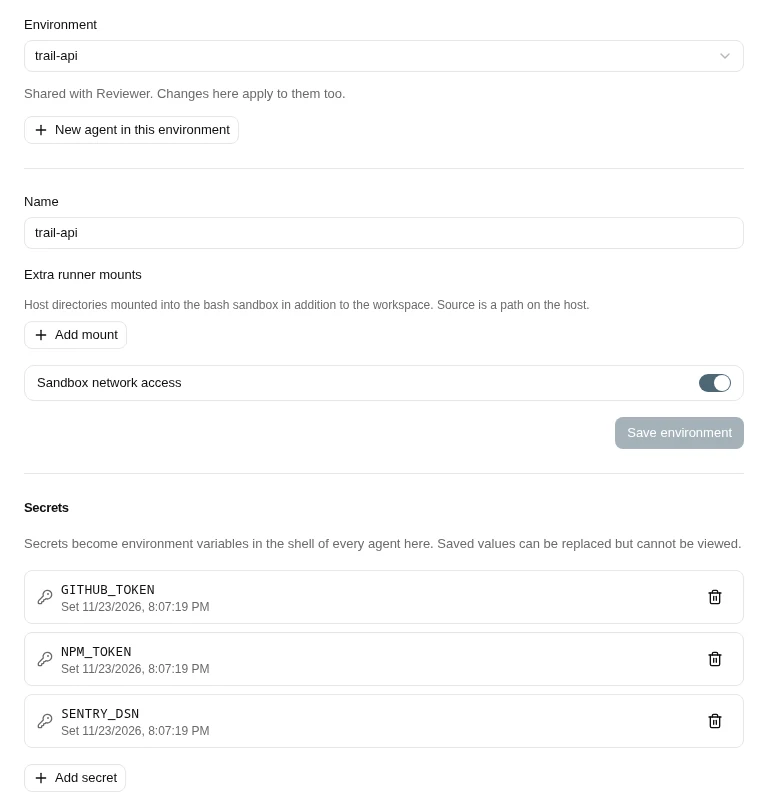
The runner container, its /workspace, its persistent /home/agent, its /tmp, the web terminal, and the shared browser all belong to the environment, not to a single agent.
| Path | What it holds |
|---|---|
/workspace | The environment's workspace. Each agent's default working folder is /workspace/<agent id>. |
/home/agent | A persistent home: npm global installs, a Python virtual environment, browser profile, tool logins. |
/tmp | Private scratch space. It is cleared whenever the runner is removed. |
| Mounts | Host folders an administrator has added. |
Save what matters
/tmp is cleared when the runner is recreated — after idling, configuration changes, or a server restart. Keep anything you need later in the workspace or /home/agent.
Sharing an environment between agents
A new agent gets an environment of its own. In Agent Settings → Environment, you can instead move it into another of your environments, or give it a new one. New agent in this environment creates a sibling directly.
Agents in one environment share a single runner: the same checkout, tool installs, gh login, browser sign-ins, and secrets. Each keeps its own prompt, model, memory, and permissions — so a read-only reviewer can work beside an agent that edits.
- Environments are owner-only. Attaching an agent to one hands it the environment's credentials, so only the owner can attach agents or change its settings.
- Changes to an environment apply to every agent in it and are refused while any of them is running.
- Agents in one environment can run at the same time and see each other's files as they change. Carmel Agent does not lock the workspace between them.
- Deleting or moving the last agent out of an environment deletes the environment and its secrets. Workspace and home files stay on disk.
Working folder
Each agent has its own working folder, chosen under Agent Settings → General:
- Default folder —
/workspace/<agent id>, which Carmel Agent creates. Because every default folder sits under the same/workspace, agents in one environment can reach each other's files by path. - A runner mount — a mount, or an existing folder inside one.
Commands, terminals, file tools, the file manager, and the Changes view all start in the working folder. Moving an agent to another environment resets it to the default folder there; its files stay in the old environment.
Mounts
Administrators can add host folders to an environment under Extra runner mounts. Each mount has a host path, an optional container path (it defaults to the host path, so paths match in both places), and a Read only flag.
Read-only mounts are available to read, search, and list tools and to the sandbox as read-only binds. Writable mounts can also be changed by write and edit tools.
Sandbox network access
Sandbox network access decides whether the runner container has a network at all. Without it, the container is created with no network. Every agent in the environment shares this setting, since they share one container.
This is separate from an agent's Web access permission, which controls Carmel Agent's own web tools such as fetch_url.
Secrets
An environment can hold named secrets that are exported as environment variables into its sandbox — a GITHUB_TOKEN for gh, a registry password for npm, a database URL for psql. Add them under Secrets, one at a time or with Import .env.
- Secrets reach sandbox commands and the MCP connections you configure (as
${NAME}). They are never placed in the system prompt or sent to Carmel Agent's web tools. - They are read per command, so a rotated secret takes effect on the next command.
- Values are write-only in the UI and API: you can replace or delete a secret, but never read it back.
- Values are encrypted with the server's
CARMEL_SECRET_KEY. - Secret values are redacted from command output and tool results as
[redacted:NAME]before they are shown or saved.
Redaction is a safety net, not a wall
Redaction stops accidental leaks — an env, a set -x, a verbose curl. An agent that can use a secret can always encode or transmit it. See the Security model.
Agents can also ask you for a credential during a conversation. See Questions and credentials.
The workspace pane
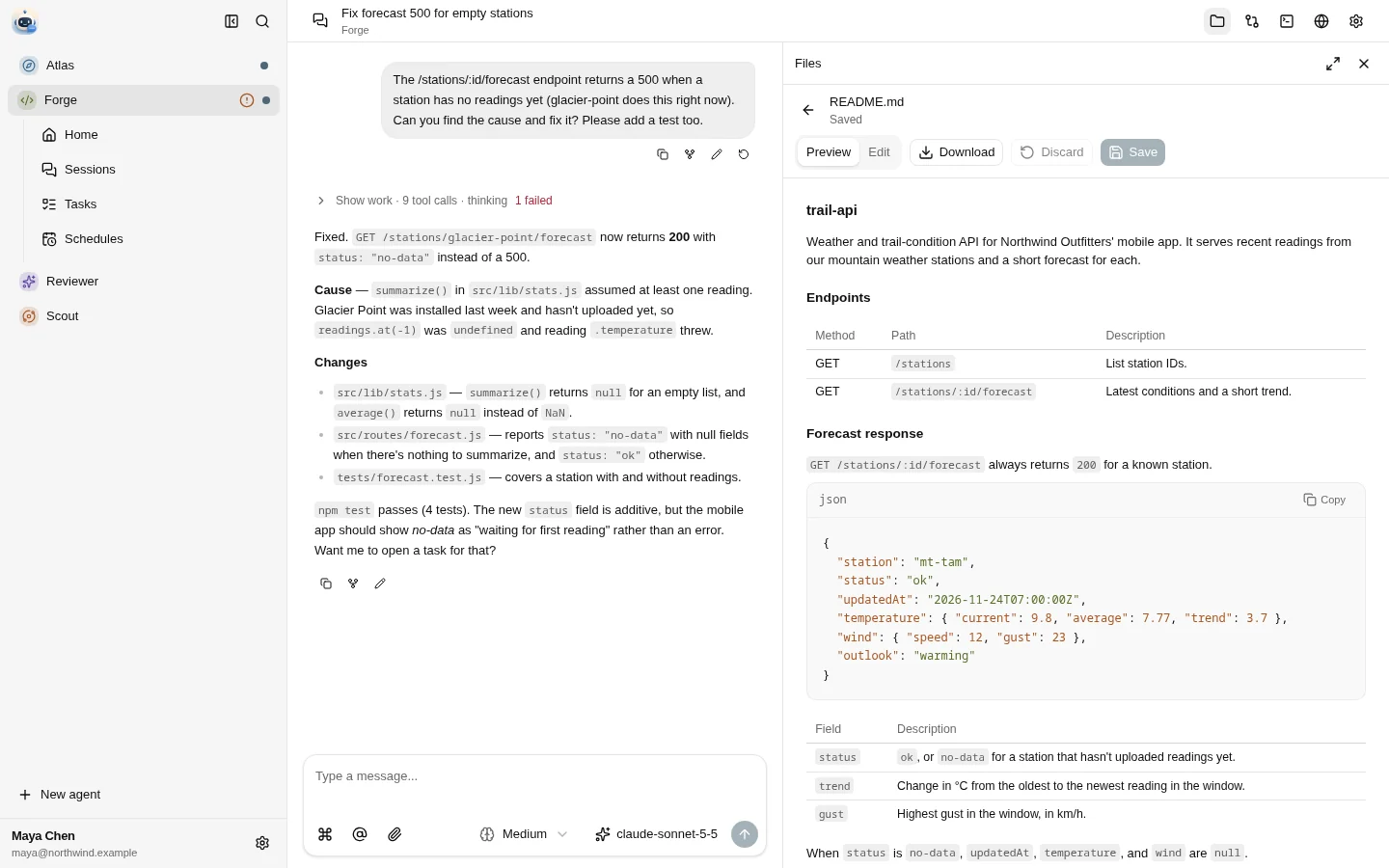
Files, Changes, Terminal, and Browser open in a resizable pane beside the conversation. Each can be expanded to the full main area. The layout is remembered, and narrow windows switch to a single-pane view.
Files
Browse the agent's working folder, preview Markdown and images, and edit source files. Depending on the agent's permissions, you can also upload, download, create, rename, move, copy, and delete files. Folders and multi-selections download as a zip.
The file manager is scoped to the agent's working folder and follows the same permissions as the agent's tools. Text files over 4 MiB are not opened for editing, and uploads are limited to 2 GiB per file.
Changes
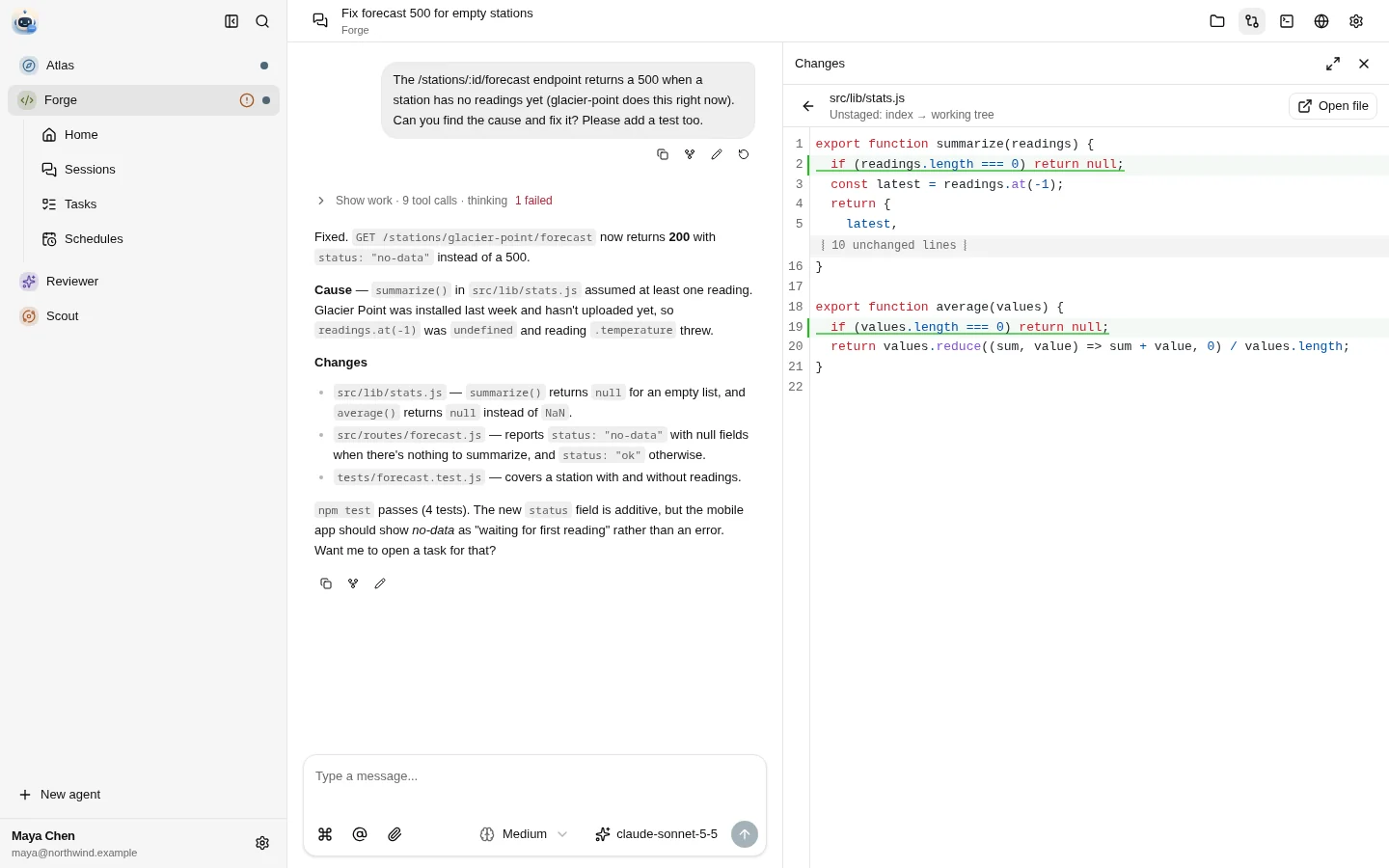
If the working folder is a Git repository, Changes shows staged, unstaged, untracked, and conflicted files with a diff view.
Web terminal
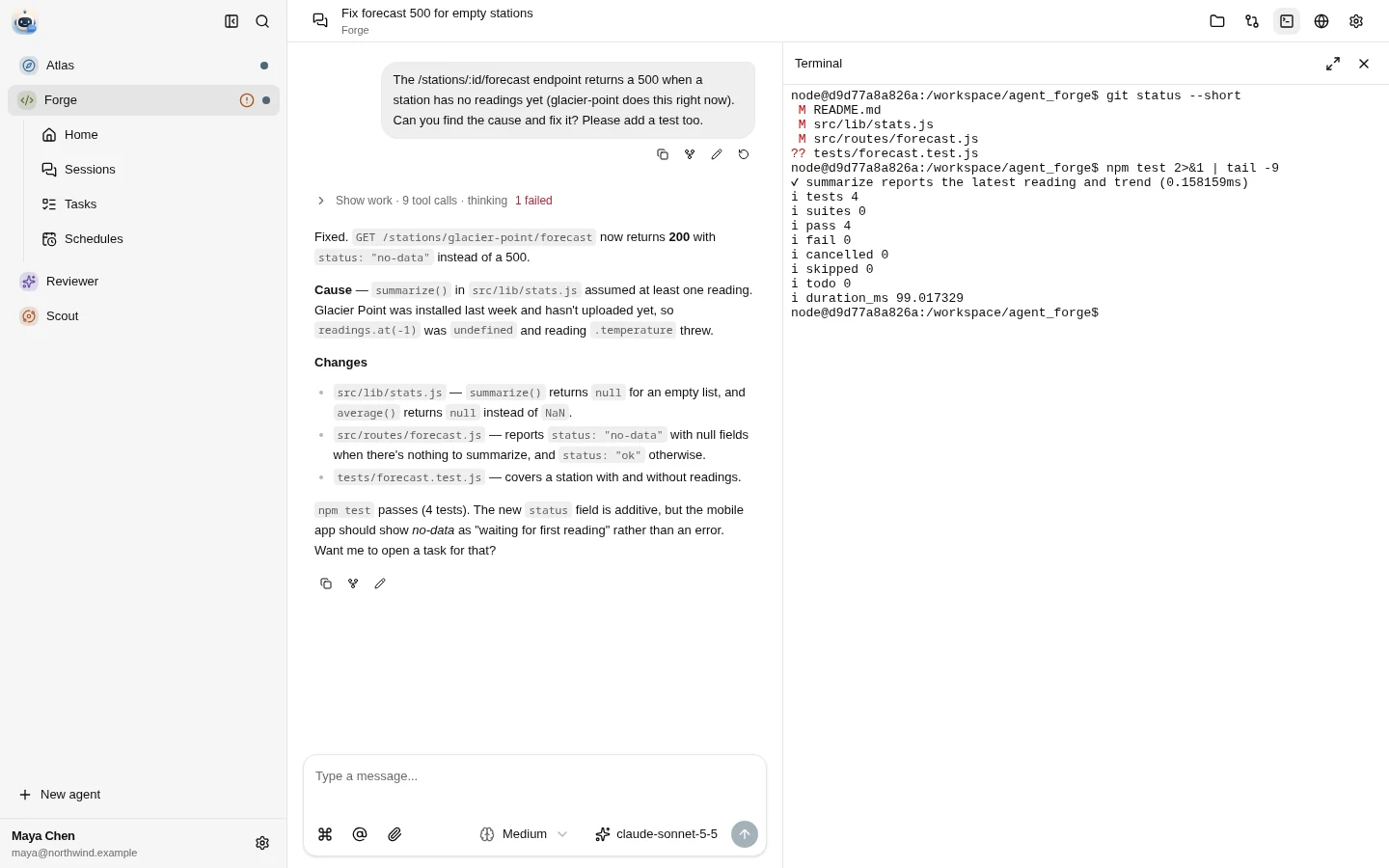
The terminal button opens an interactive shell in the environment's runner container, with the same environment variables and secrets the agent's commands get. It is useful for debugging what the agent actually sees — gh auth status, psql "$DATABASE_URL".
- Owner only. A shared agent's other users get a chat, not a shell.
- Requires Run commands. With that permission off, no terminal is offered.
- One shell per environment per person. Two tabs on agents in the same environment drive the same shell, like two windows on one tmux session. A new shell starts in the working folder of the agent it was opened from.
- Survives reloads. Reloading reattaches to the running shell and replays recent scrollback. A shell nobody is attached to is closed after two minutes.
Terminal output is not redacted, because nothing in it is saved to a transcript or sent to a model. Saving the environment's settings closes its terminals, since mounts, network, and secrets are baked into a running shell.
Shared browser
The Browser button opens a live view of the agent's Chromium beside the conversation. It needs the agent's Run commands permission. Unlike the terminal, it is available to everyone who can use the agent.
- Watch the agent browse in real time.
- Take control to navigate, switch tabs, click, scroll, type, or paste — for example, to sign in or pass a verification step. Taking control pauses every agent in the environment; in-flight tool calls finish first.
- Resume agent hands control back. The agent gets a fresh snapshot of the page.
On mobile, the Keyboard button provides text entry. Shift + Esc leaves the remote keyboard surface. Closing the pane does not close the browser.
Agents can ask for help themselves with request_browser_help — the pane then shows that the agent is waiting for you. Agents with both Run commands and Web access also get Carmel Agent's built-in agent-browser skill, which you can invoke with /skill:agent-browser.
Sign-ins belong to the environment
The browser profile lives in /home/agent/.agent-browser/profile and belongs to the environment. Signing in to a site grants every agent in the environment — and everyone who can use those agents — access to that account.
Recreating the runner keeps the profile and its cookies, but may lose open pages and unfinished forms.