
Chat and sessions
A session is one conversation with an agent. Sessions belong only to you — even on a shared agent, other people never see your conversations.
Runs live on the server
When you send a message, the agent's run happens on the server, not in your browser tab. You can reload, switch devices, or close the tab; reopening the session reconnects to the run where it left off. Use Stop to end a run early.
If the server restarts while a run is in progress, the session offers Resume and Stop for the saved work. Resuming continues from the last checkpoint instead of resending your message.
Reading answers
The agent's thinking, tool calls, and intermediate commentary fold under Show work, so the final answer and any errors stay easy to read. Expand it to see each command, file edit, search, or nested codemode call, with its status and duration.
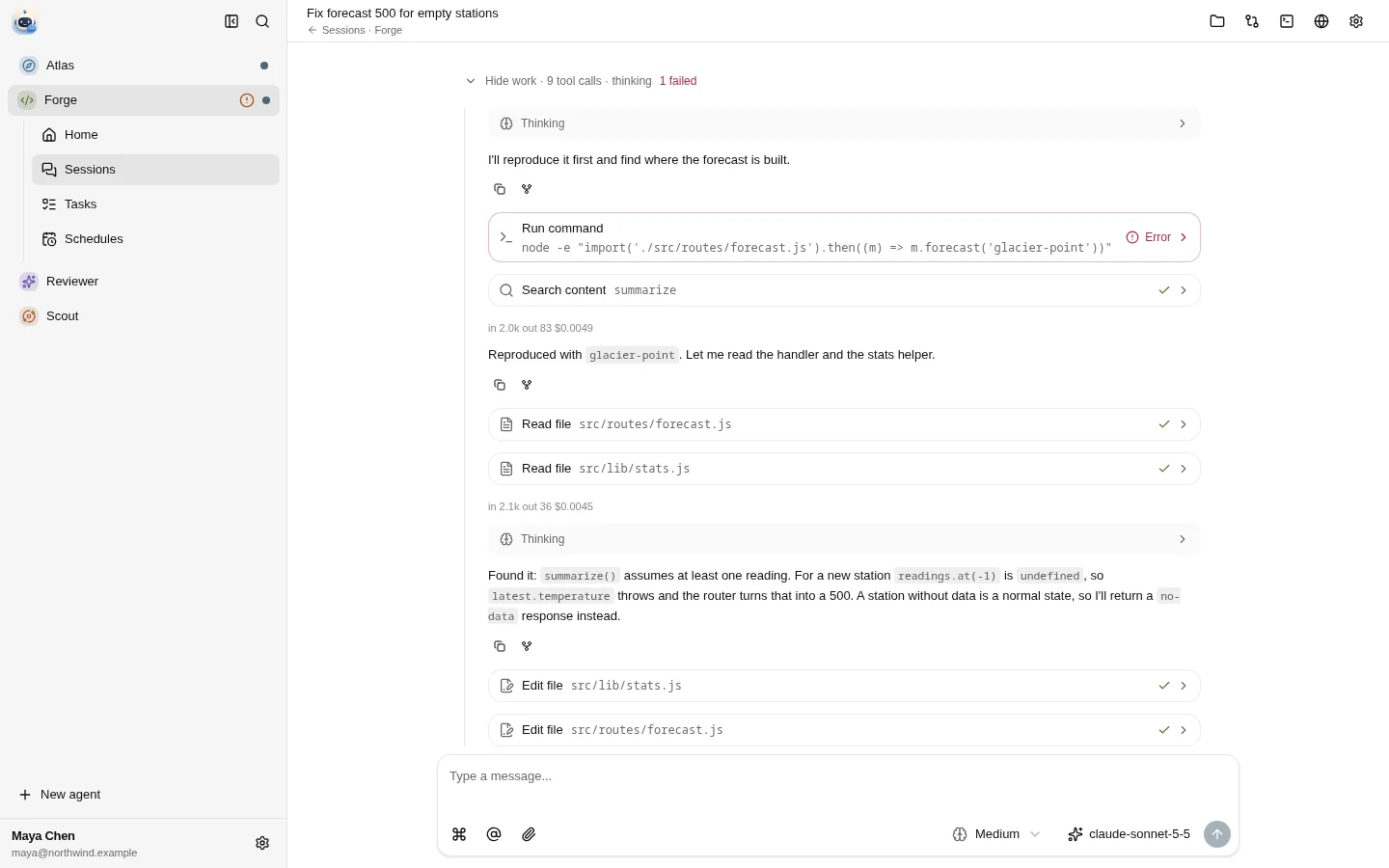
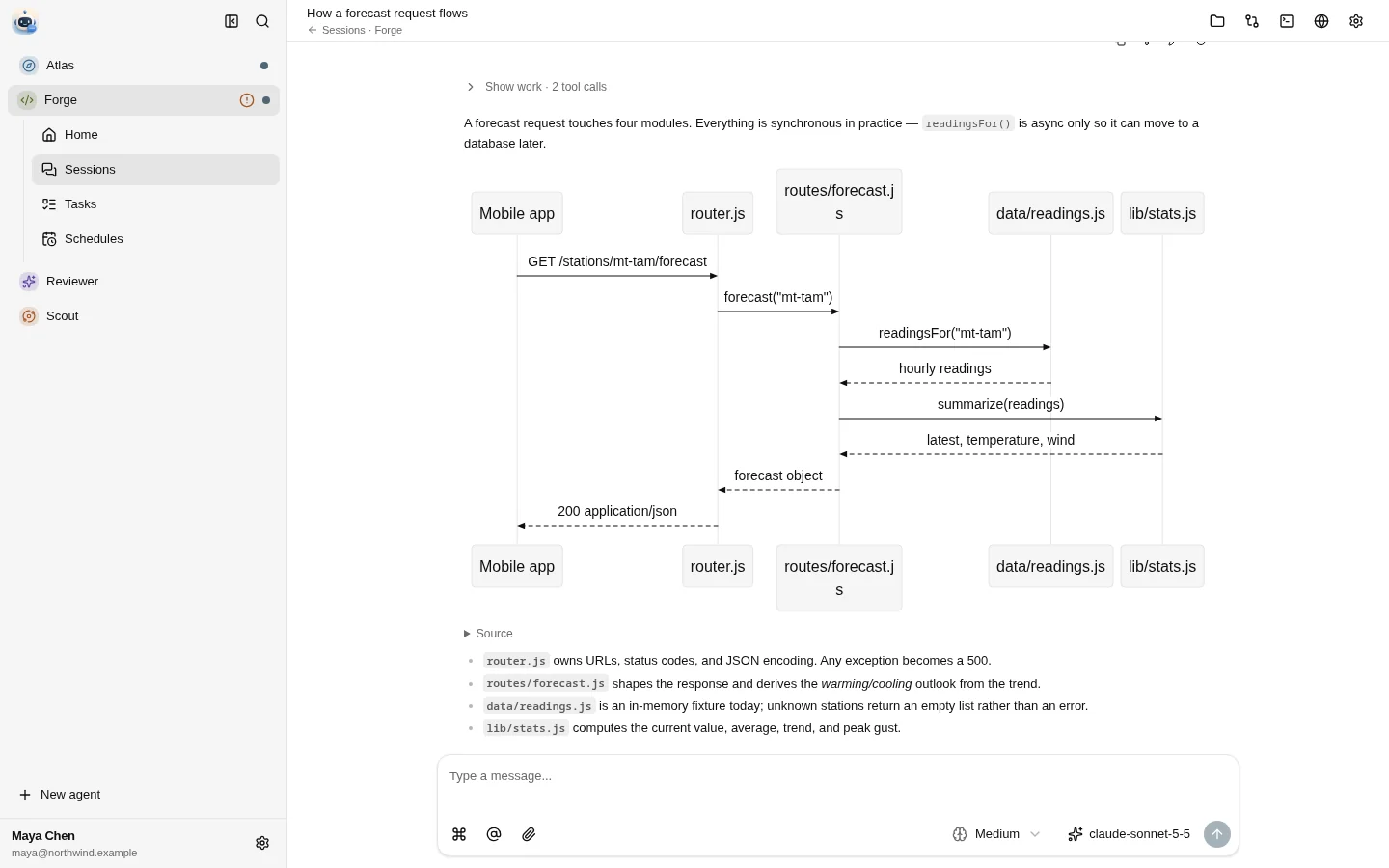
Answers render Markdown, including code blocks you can copy and Mermaid diagrams. Links to files in the agent's workspace open in the workspace pane.
Model and thinking level
Each session starts with the agent's default model and thinking level. You can change both from the composer for the current session. The thinking levels available depend on the model.
Attachments and references
The composer accepts files through the attachment button, drag and drop, or paste.
- Images go to the model directly as image input, when the model supports images.
- Other files are uploaded unchanged into the agent's workspace under
uploads/<unique-id>/<filename>and inserted into your message as an@pathreference. The agent reads them with its file tools. This needs the agent's read and write permissions and works with text-only models.
Type @, or use Mention a reference, to point the agent at workspace files, folders, other conversations, or collaborating agents. Files and folders are inserted as paths; conversations appear as removable chips. The agent receives a recent excerpt from a referenced conversation, not a full copy.
Limits
A message can include up to ten attachments and references. Each uploaded file is limited to 20 MiB. Removing a reference keeps the uploaded file in the workspace.
Carmel Agent does not extract uploaded documents for the model. Plain text, Markdown, and CSV are readable directly; PDF and Office files need a suitable tool or converter in the agent's environment.
Slash commands
Press / in an empty composer, or Ctrl/⌘ + K, to open the command palette. It lists:
- Prompt commands from the agent's prompt templates.
- Skill commands from the agent's skills.
- System commands, such as New context and Stop Home in Home.
Editing the conversation
Hover a message for its actions:
- Copy message copies its text.
- Edit message opens an editor for one of your messages. Submit drops everything after it and runs the agent again from the edited message. Save rewrites the message in place and keeps the rest of the conversation. Assistant messages can be edited and saved too.
- Retry from this message runs the agent again from that point.
- Fork from this message starts a new session containing the conversation up to that point.
Edits are stored as new branches, so the original conversation is never overwritten on disk.
Organizing sessions
The sidebar lists your sessions for the selected agent, grouped by date, with pinned sessions at the top. From a session's actions you can Pin, Rename, Archive, or Delete it. Archived sessions are listed under Agent Settings → Archived, where you can restore them.
Session titles are generated automatically. If you set a fast task model in Settings → Models, it is used for titles and other light background work; otherwise the session's own model is used.
Searching
Press Ctrl/⌘ + Shift + F to search titles and messages across your sessions. The sidebar also has a filter for the current agent's sessions.
Agents can search your earlier conversations with them too, using session_search and session_read. These only see your own conversations with that agent.
Importing chats
You can bring conversations from Open WebUI into an agent. See Import from Open WebUI.