
Schedules
Schedules run a prompt for you once or on a recurring basis: a reminder tomorrow morning, a weekday summary of your notes, a nightly build check.
Each scheduled run starts in a fresh session with the schedule's prompt, so write prompts that make sense on their own. Results appear in the schedule's run history.
Ask in chat
The easiest way to create a schedule is to ask:
Remind me tomorrow at 9 AM to submit the report.
Summarize my notes every weekday at 6 PM.
The agent creates an active schedule owned by you, using the current agent, model, and thinking level. It uses your browser's time zone, asks when a time is missing or ambiguous, and confirms only after the schedule is created.
You can also ask it to list, change, pause, resume, or delete your schedules — from the web, from messaging apps, or in Codemode scripts.
Create one yourself
Open Schedules in the agent navigation and select New schedule. Give it a name and a prompt, then choose when it repeats:
| Option | Example |
|---|---|
| Once, at a time | An ISO date and time with a time zone, such as 2026-10-01T09:00:00+08:00. |
| Every N minutes | 60 for hourly. |
| On a cron schedule | Minute, hour, day of month, month, weekday — 0 18 * * 1-5 for weekdays at 6 PM. |
Choose a Time zone and, optionally, a Notification destination.
Managing schedules
Each schedule shows its next run and last result. From its actions you can run it now, view its run history, edit, pause or resume, or delete it.
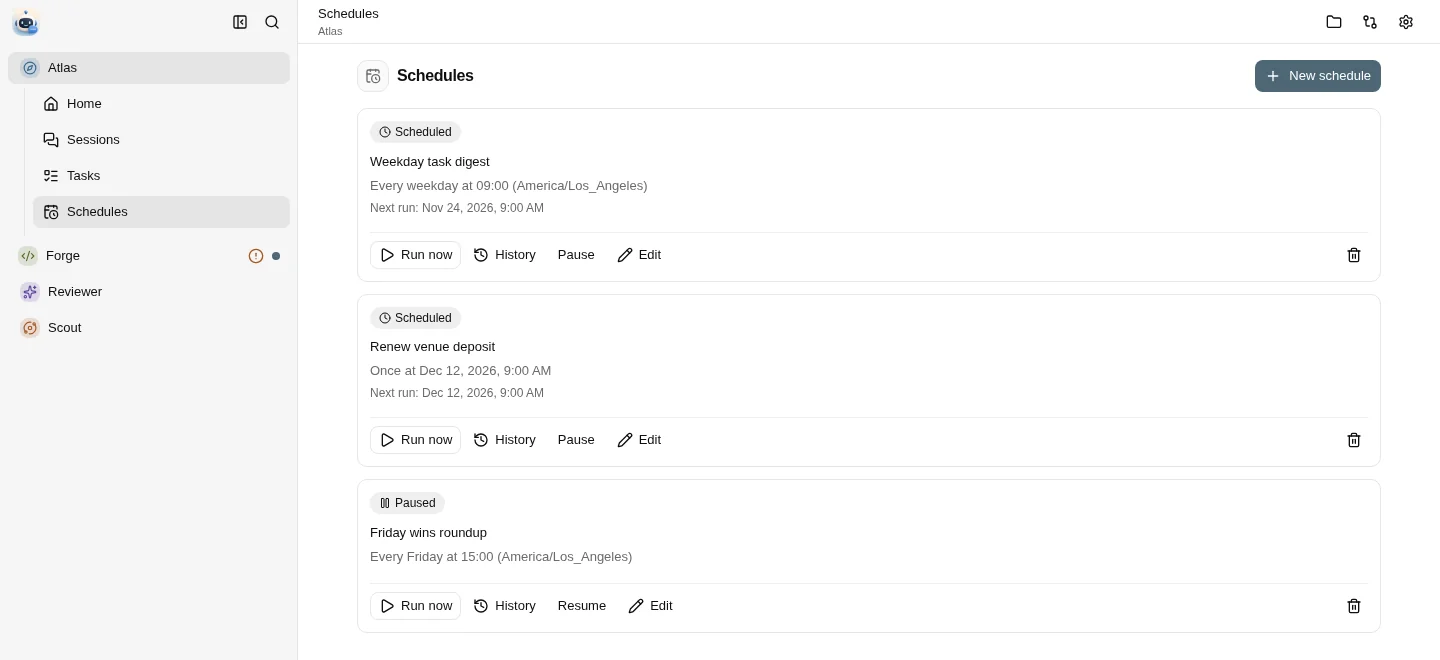
- Pausing prevents future runs and keeps the history. It does not interrupt a run in progress.
- Deleting removes the schedule and its run history. It is unavailable while a run is in progress.
Notifications
A schedule does not notify you by default — results stay in its run history. To get a message, connect a messaging app and choose it as the schedule's Notification destination. Describe in the prompt when you want to be notified:
Check the build. If it failed, send me the failure summary.
The run then sends you a message when the conditions apply. Delivery depends on the agent actually sending the message, so it is not an unconditional copy of every result.
How schedules run
- The server must be running. Its scheduler checks for due work every 30 seconds.
- Up to
CARMEL_AGENT_MAX_CONCURRENT_TASKSscheduled runs (default 2) run at once. - Access to the agent and model is checked when the schedule is created and again each time it fires.
- Scheduled runs cannot create, change, or delete schedules themselves, so a reminder can never reschedule itself.