
Users and sign-in
Carmel Agent is multi-user. Everyone gets private sessions, Home, memory, and tasks; sharing agents and models is opt-in.
Roles
| Role | Can |
|---|---|
| Administrator | Everything a user can, plus manage accounts (create, delete, change roles, reset passwords) and the instance's providers and credentials. Configure host-path mounts for environments. |
| User | Create agents, model entries, and sessions; use shared agents and models; change their own name, password, theme, and fast task model. |
Provider credentials belong to the instance, so one administrator can hold the API keys and publish useful agents without exposing the keys or reading anyone's conversations. Sessions are always private.
The first account
The first account is created in the browser on first run and becomes the administrator. The setup form closes as soon as any account has a password or a linked single sign-on identity, so it cannot be used to create more administrators later.
With single sign-on configured, the welcome screen also offers Continue with <provider>, and the first person to sign in that way becomes the administrator (unless CARMEL_OIDC_ADMIN_GROUPS is set — see Groups).
Managing accounts
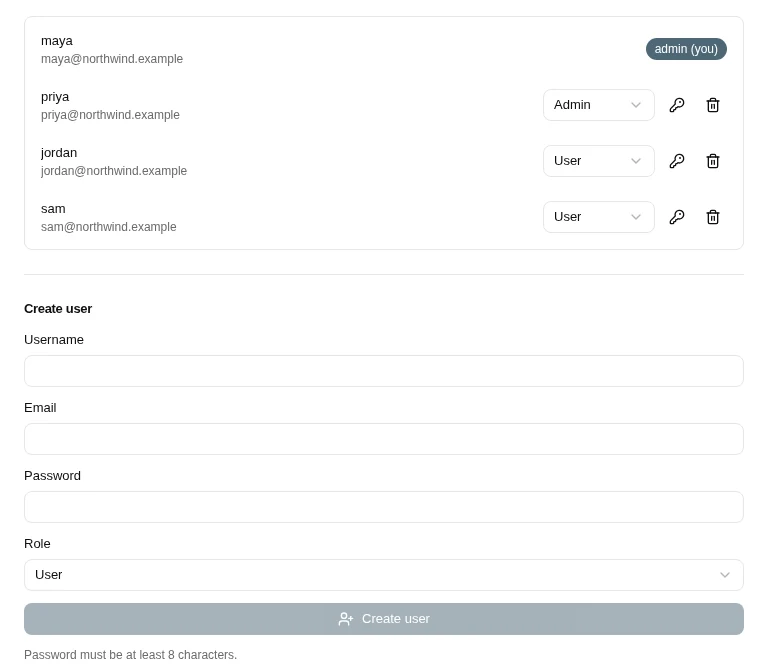
Administrators manage accounts under Settings → Users: create users, change roles, reset passwords, and delete accounts. Deleting a user also removes their single sign-on links.
Each person manages their own email, password, language, and theme under Settings → Account and Settings → Appearance.
Creating an administrator from the command line
Use this when nobody can sign in — a lost administrator password, or unattended provisioning.
CARMEL_PASSWORD='choose-a-long-password' \
  podman compose exec -e CARMEL_PASSWORD carmel-agent \
node --import tsx src/cli/create-user.ts --username adminpnpm --filter @carmel-agent/server user:create \
--username admin \
--password 'choose-a-long-password' \
--name 'Admin' \
--email admin@example.testThe command initializes the database if needed, then creates or updates the account and always grants the administrator role. Passwords must be at least 8 characters. An existing user with the same username is updated in place — which is how you reset a forgotten password.
Single sign-on (OpenID Connect)
Carmel Agent can sign people in through any OpenID Connect provider. It is tested with Pocket ID, and anything that serves a standard discovery document — Authelia, Authentik, Keycloak, Zitadel, and others — works the same way.
SSO is configured with environment variables and is off until CARMEL_OIDC_ISSUER is set. A misconfigured variable stops the server at startup with a message naming it.
Basic setup
Register a client with your provider. Use this redirect URI:
text<CARMEL_PUBLIC_URL>/api/auth/oidc/callbackThe server also logs the exact URI at startup.
Set the required variables:
dotenvCARMEL_PUBLIC_URL=https://carmel.example.com CARMEL_OIDC_ISSUER=https://id.example.com CARMEL_OIDC_CLIENT_ID=your-client-id CARMEL_OIDC_CLIENT_SECRET=your-client-secret CARMEL_OIDC_PROVIDER_NAME=Pocket IDRestart Carmel Agent. The sign-in page now offers Sign in with Pocket ID.
Leave CARMEL_OIDC_CLIENT_SECRET unset for a public client; Carmel Agent always uses PKCE. To make SSO the only way in, set CARMEL_PASSWORD_LOGIN=false, which turns off password sign-in and the first-run setup form.
All OIDC variables are listed in Environment variables.
Pocket ID example
In Pocket ID, open OIDC Clients → Add OIDC Client, set the callback URL to https://carmel.example.com/api/auth/oidc/callback, and create a client secret. To use groups, create them under User Groups and add people.
environment:
  CARMEL_PUBLIC_URL: https://carmel.example.com
  CARMEL_OIDC_ISSUER: https://id.example.com
  CARMEL_OIDC_CLIENT_ID: 00000000-0000-0000-0000-000000000000
  CARMEL_OIDC_CLIENT_SECRET: from-pocket-id
  CARMEL_OIDC_PROVIDER_NAME: Pocket ID
  CARMEL_OIDC_ADMIN_GROUPS: carmel-admins
Pocket ID reports email_verified: false until a user verifies their email, so with the default settings Pocket ID users are matched by username. If your Pocket ID emails are managed by administrators and trustworthy, set CARMEL_OIDC_REQUIRE_VERIFIED_EMAIL=false to match by email too.
How accounts are matched
The first time someone signs in, Carmel Agent decides which account they get and links their provider identity (issuer plus sub) to it. Every later sign-in uses that link, so changing a username or email at the provider cannot move someone onto another account.
For a first sign-in, CARMEL_OIDC_MATCH_BY decides how to find an existing account:
| Value | Behavior |
|---|---|
email,username (default) | Try a verified email first, then the username. |
username,email | Try the username first, then a verified email. |
username or email | Use only that field. |
none | Never link to existing accounts. |
- Usernames are compared case-insensitively.
- Emails are compared case-insensitively, only when the provider marks them verified (see
CARMEL_OIDC_REQUIRE_VERIFIED_EMAIL), and never against an account already linked to another identity. - If more than one account matches, or a username matches an account linked to a different identity, sign-in is refused rather than guessed.
When nothing matches, a new account is created — unless CARMEL_OIDC_AUTO_CREATE=false, which allows only accounts an administrator created in advance.
Trust in provider usernames
Matching trusts the provider's usernames and emails. If people can change their own username at the provider, someone could claim a name belonging to an existing Carmel Agent account (an administrator's, for example) before its owner first signs in with SSO. If that is a concern, disable self-service profile editing at the provider, or use email (verified only) or none.
With none or a single field, someone who already has an account may end up with a second one. The server logs a warning naming the variable to change. To fix it, delete the extra account under Settings → Users, adjust the variable, and sign in again.
On every sign-in, the account's name and email are updated from the provider. The username is set once, when the account is created, because it is also the password login name. If it is already taken by a local account, the new account is created without one.
Groups
CARMEL_OIDC_ALLOWED_GROUPS— only members of at least one of these groups can sign in.CARMEL_OIDC_ADMIN_GROUPS— the provider controls roles: members are administrators and everyone else is a user, re-checked on every sign-in. Role changes made under Settings → Users only last until that person's next sign-in. The very first account follows this rule too, so make sure you are in an admin group before signing in.
When either is set, the groups scope is requested automatically — unless you set CARMEL_OIDC_SCOPES yourself, in which case include groups explicitly.
Good to know
- A sign-in in progress is kept in server memory for up to 10 minutes. A restart during that window just means clicking the button again.
- A sign-in started in one browser can only be finished in the same browser, and each attempt works only once.
- An issuer on plain
http://is accepted with a warning. Use HTTPS for anything other than local testing. - Signing out ends the Carmel Agent session only, not the provider session.
- SSO-only accounts have no password. An administrator can set one under Settings → Users if the account has a username.